HowItWorks
Getting started with MOOXY Schematics is super easy. Just follow these 7 simple steps and you'll be ready in minutes.
Create Your Account
Sign Up on MOOXY Schematics
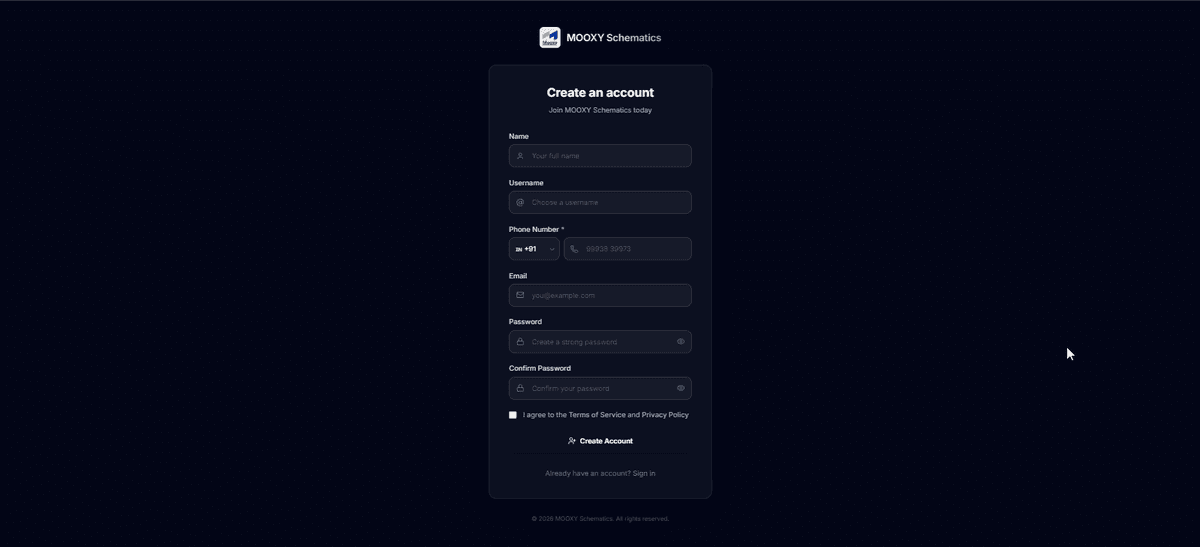
Visit the MOOXY Schematics website and click on the Sign Up button. Fill in your name, email, phone number and password to create your account.
Complete Registration
Fill in all required details
Fill in all the details correctly in the Sign Up form — Name, Username, Phone Number, Email and Password. Click Create Account after completing all fields.
Verify Your Email
Confirm your email address
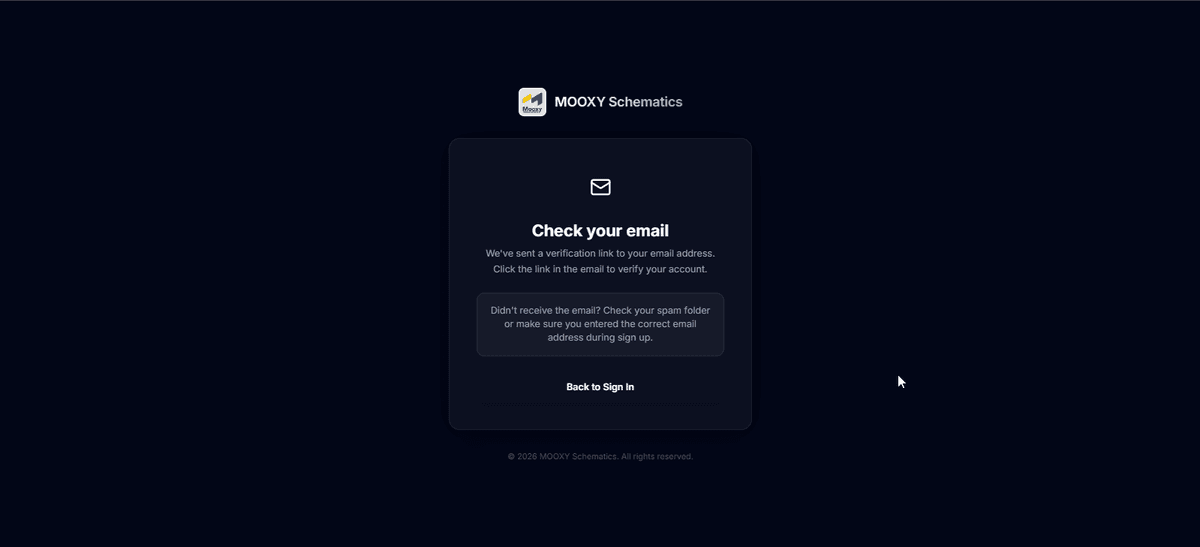
After registration, a 6-character verification code will be sent to your email. Enter it on the verification page to confirm your email. Once verified, proceed to the Login page.
Get Subscription / Activation Key
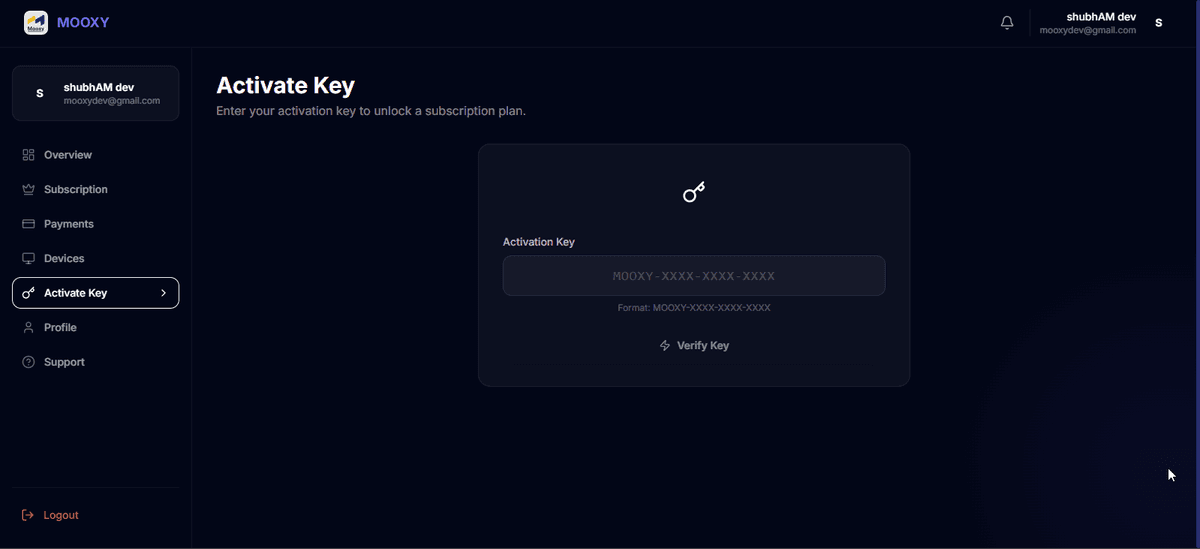
Choose a plan or enter activation key
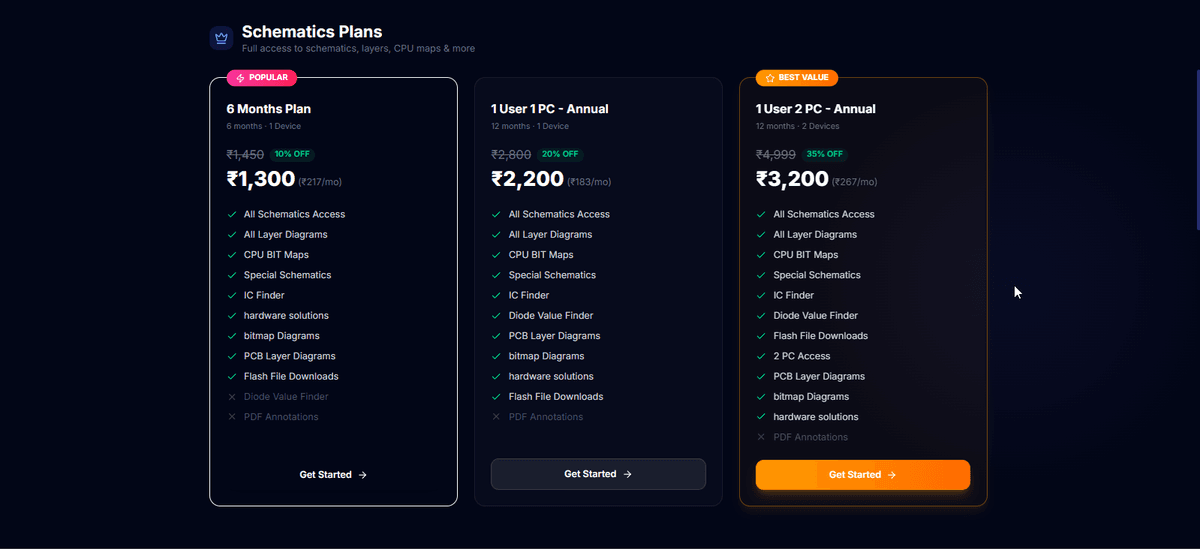
After logging in, go to the Dashboard. Choose a Subscription Plan and make the payment. Alternatively, contact the Support Team to get an Activation Key.
View Plans
Or Enter Activation Key
Download the App
Get the desktop application
Once your Subscription is active, download the MOOXY Schematics Desktop App. You can find the Download button on the website Home Page.
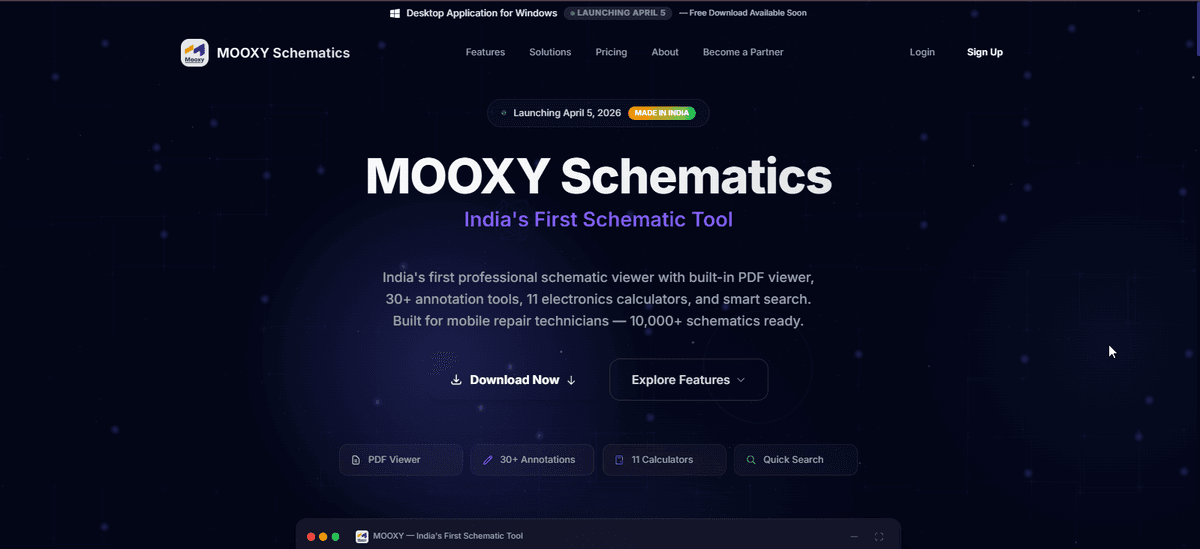
Install the App
Set up MOOXY on your computer
Open the downloaded file and follow the installation steps. The app will be installed on your computer within a few minutes.
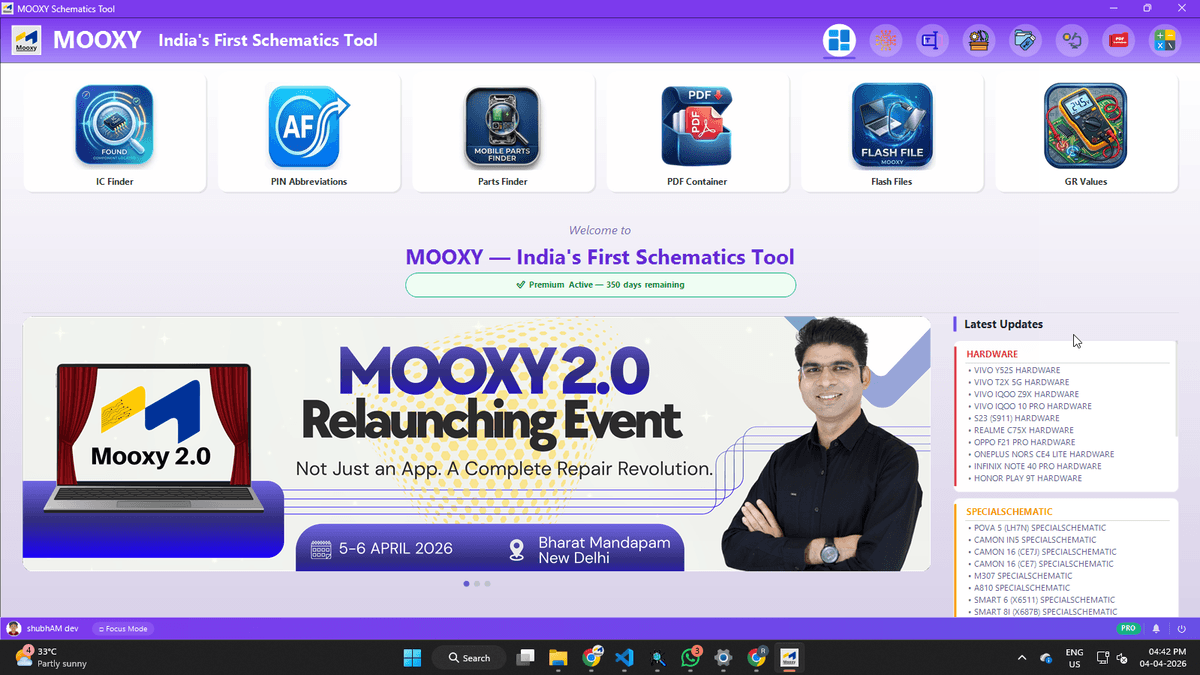
Login & Start Using
You're all set!
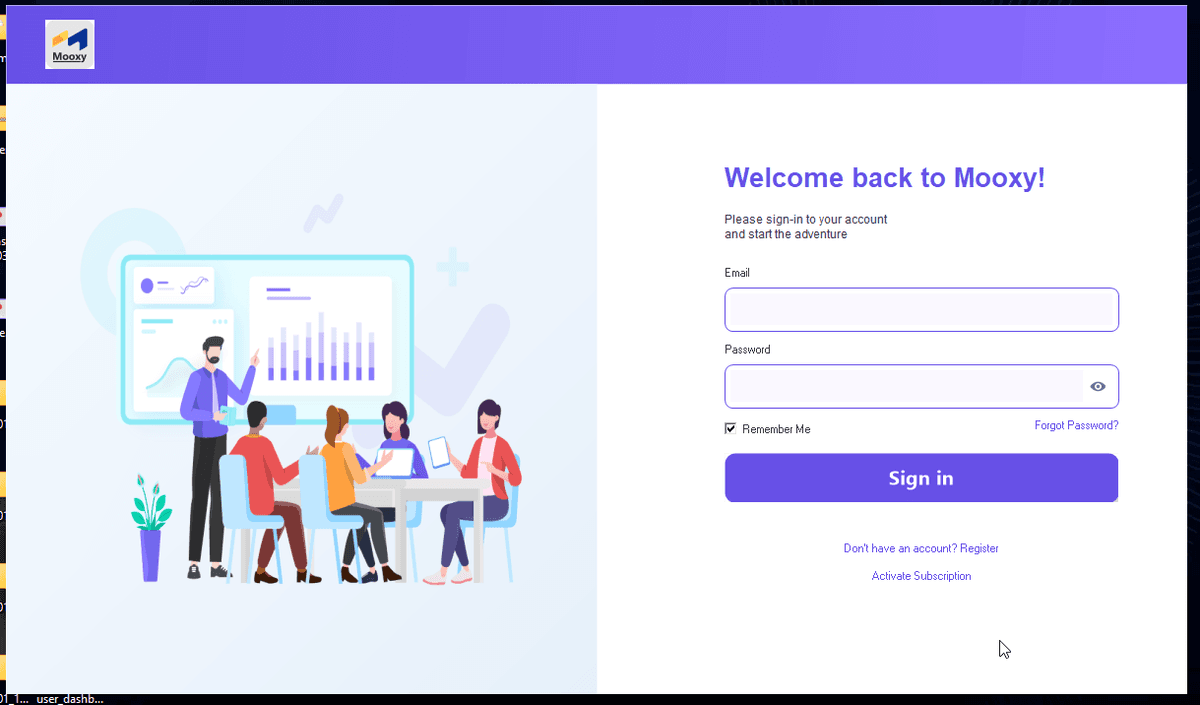
Open the app, log in with your MOOXY Account email and password. Once logged in, you can start browsing Schematics. You are now ready for mobile repair!
Login to the App
Start Using Schematics
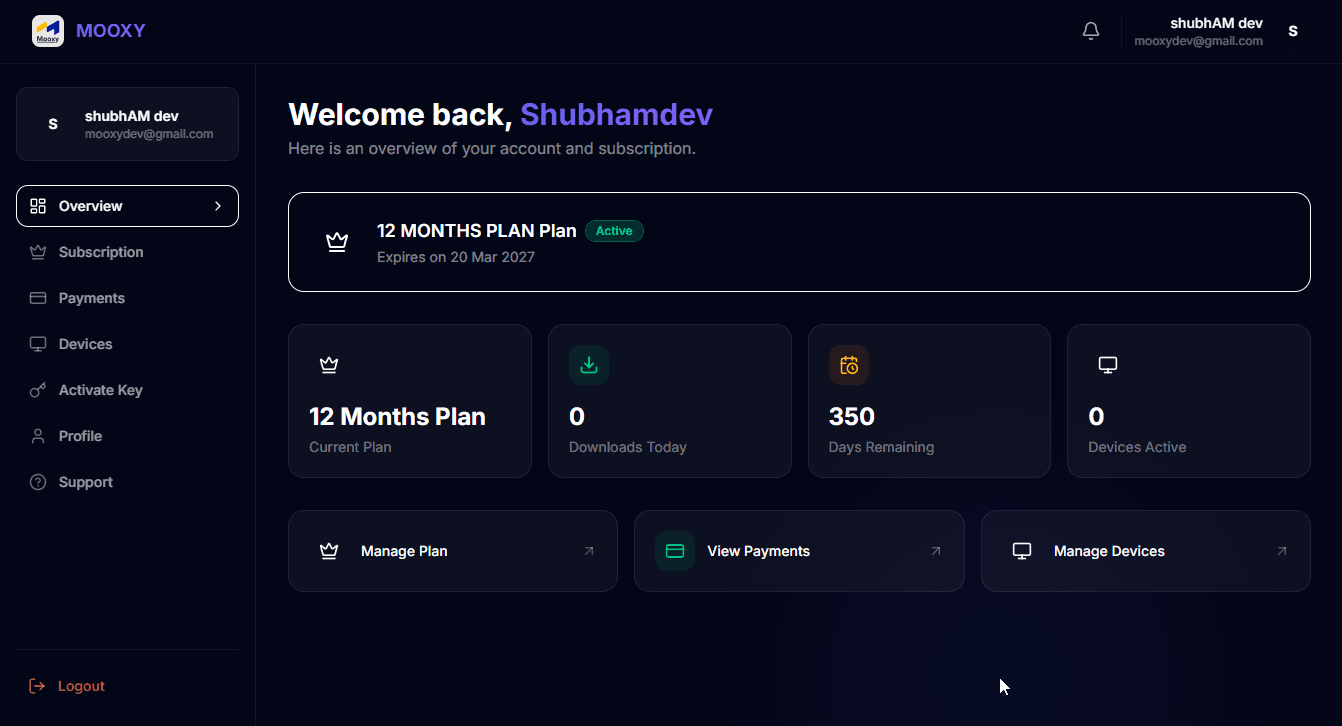
Your Dashboard is Ready
Once everything is set up, your Dashboard will look like this — Plans, Devices and Payments all in one place!
Ready to Get Started?
Sign up now and start your Mobile Repair journey with MOOXY Schematics. Welcome to India's First Schematic Platform!